How to Speed Up Slow Windows Laptop in India (2026 Pro Tips)
January 26, 2026 • Cracent
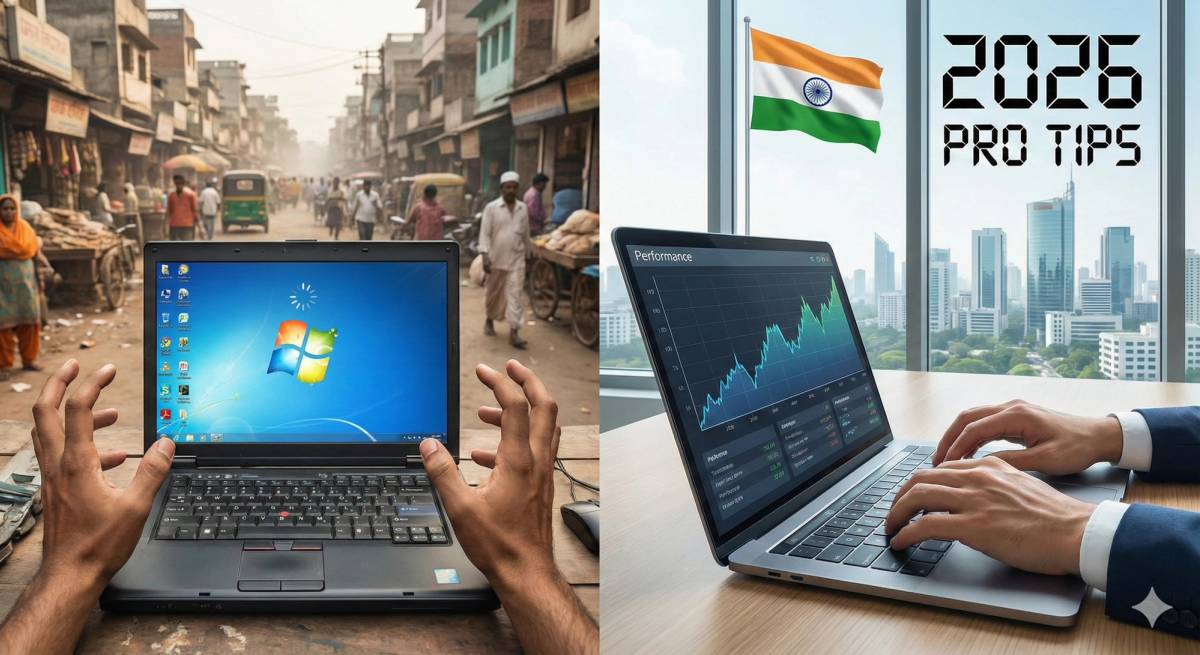
Is your Windows laptop crawling at a snail's pace? You're not alone. Millions of Indian users struggle with sluggish laptops that take forever to boot, freeze during important work, or run painfully slow when multitasking. Whether you're working from home in Mumbai, studying in Delhi, or running a business in Bangalore, a slow laptop can severely impact your productivity.
The good news? You don't need to buy a new laptop or spend thousands on professional repairs. This comprehensive guide reveals proven techniques to breathe new life into your Windows laptop in 2026, specifically tailored for Indian users dealing with power fluctuations, dust, heat, and budget constraints.
Understanding Why Your Laptop Slows Down
Before diving into solutions, it's crucial to understand what's causing the slowdown. Indian laptops face unique challenges: frequent power cuts leading to improper shutdowns, excessive dust accumulation due to air quality issues, high ambient temperatures especially during summer months, and heavy multitasking with limited RAM. Identifying the root cause helps you apply the right fix.
Immediate Quick Fixes That Work Instantly
Start with these rapid solutions that deliver immediate results. Restart your laptop properly—this simple action clears RAM and stops unnecessary background processes that accumulate over time. Many Indian users keep laptops running for days, which gradually degrades performance.
Close unnecessary browser tabs immediately. Chrome and Edge are notorious memory hogs, and having 20+ tabs open (a common habit among Indian users juggling work, social media, and entertainment) can consume 4-8 GB of RAM alone. Keep only essential tabs active.
Check your internet speed separately from laptop performance. Slow browsing might not be your laptop's fault—India's average broadband speeds vary significantly, and network issues often masquerade as laptop problems. Run a speed test at Fast.com to rule this out.
Deep Clean Your Laptop Storage
Storage clutter is the number one killer of laptop speed in India. Start by uninstalling unused applications. Navigate to Settings > Apps > Installed apps, and ruthlessly remove programs you haven't used in three months. Indian users often accumulate dozens of apps from various offers, free trials, and bundled software that continuously run in the background.
Delete temporary files that pile up relentlessly. Press Windows + R, type "%temp%" and delete everything in that folder. Then type "temp" and delete those files too. Finally, type "prefetch" and clear that folder. This can free up 5-20 GB instantly.
Empty your Downloads folder completely. Indian users frequently download PDFs, images, videos, and documents that never get organized. This folder alone can contain 50-100 GB of forgotten files eating up precious SSD space.
Use Windows Storage Sense by going to Settings > System > Storage and enabling it. This feature automatically deletes temporary files and empties the recycle bin every 30 days—perfect for users who forget regular maintenance.
Run Disk Cleanup for a thorough clean. Search for "Disk Cleanup" in the Start menu, select your C: drive, and check all boxes including "Windows Update Cleanup" and "Thumbnails." This can recover another 10-30 GB.
Disable Startup Programs Aggressively
Windows laptops in India come preloaded with excessive bloatware from manufacturers like HP, Dell, Lenovo, and Asus, plus software from telecom providers and retailers. These programs launch automatically and drain resources.
Press Ctrl + Shift + Esc to open Task Manager, click the Startup tab, and disable everything except your antivirus and critical drivers. Common culprits include Adobe Reader updaters, Microsoft Teams auto-start, OneDrive sync, printer software, and various "helper" applications you never use.
This single change can reduce boot time from 3-5 minutes to under 30 seconds and free up 2-4 GB of RAM immediately after startup.
Optimize Windows Visual Effects
Windows uses fancy animations and visual effects that look pretty but slow down older or budget laptops significantly. Search for "Performance" in the Start menu and select "Adjust the appearance and performance of Windows."
Choose "Adjust for best performance" to disable all effects, or select "Custom" and keep only "Show thumbnails instead of icons" and "Smooth edges of screen fonts" for a balanced approach. This optimization is especially effective for laptops with integrated Intel HD or UHD graphics commonly found in Indian mid-range laptops.
Upgrade to an SSD (The Single Best Investment)
If your laptop still uses a traditional hard disk drive, upgrading to a solid-state drive is the most impactful improvement you can make. SSD prices in India have dropped dramatically—you can now get a reliable 256GB SATA SSD for ₹1,500-₹2,000 or a 512GB model for ₹3,000-₹4,000 from brands like Crucial, WD, or Samsung.
An SSD makes your laptop 5-10 times faster for booting, launching applications, and file operations. Installation is straightforward—most laptop service centers charge ₹500-₹1,000 for the upgrade, or you can watch YouTube tutorials and do it yourself. This investment transforms even a 7-year-old laptop into a surprisingly responsive machine.
Increase RAM for Multitasking Power
Indian users typically juggle multiple applications—WhatsApp Web, Microsoft Office, browsers with numerous tabs, and video conferencing tools simultaneously. If your laptop has 4GB RAM or less, upgrading to 8GB or 16GB dramatically improves multitasking.
Check your current RAM by right-clicking "This PC" and selecting "Properties." If you have available slots, DDR4 8GB RAM modules cost ₹2,000-₹3,000 in India. For older laptops, DDR3 modules are slightly cheaper. This upgrade is especially worthwhile for students, professionals, and anyone working from home.
Update Windows and Drivers Properly
Keeping Windows updated is critical despite the frustration of lengthy update processes. Microsoft continuously releases performance optimizations, security patches, and bug fixes. Go to Settings > Windows Update and install all pending updates.
Update your drivers, especially graphics and chipset drivers, directly from manufacturer websites. Intel, AMD, and NVIDIA regularly release driver updates that improve performance. Indian laptop users often neglect this, running outdated drivers that cause slowdowns and compatibility issues.
Manage Background Apps and Services
Windows 11 and 10 allow numerous apps to run in the background, consuming CPU and RAM. Navigate to Settings > Privacy > Background apps and disable everything except essential applications like your antivirus and cloud storage services you actively use.
Additionally, disable Windows Search indexing on non-SSD drives by searching for "Indexing Options" and removing unnecessary locations. This prevents constant disk activity that slows down traditional hard drives.
Combat Heat and Dust Issues
India's hot climate and dusty environment cause laptops to overheat and accumulate internal dust rapidly. Overheating triggers thermal throttling—your CPU automatically slows down to prevent damage, causing noticeable performance drops.
Clean your laptop's vents and fans every 3-6 months. Use compressed air cans available on Amazon for ₹300-₹500, or take it to a service center for professional cleaning costing ₹500-₹1,000. This simple maintenance prevents overheating-related slowdowns common in Indian summers.
Use a laptop cooling pad with USB-powered fans, available for ₹500-₹2,000 on Flipkart or Amazon. This keeps temperatures lower, especially crucial during March-July when ambient temperatures exceed 35-40°C.
Run Regular Malware Scans
Bloatware, adware, and malware significantly slow down laptops. Use Windows Defender (built-in and free) to run full scans weekly. For stubborn infections, download Malwarebytes Free Edition and perform deep scans.
Be cautious when downloading software from unfamiliar websites—stick to official sources to avoid bundled malware that plagues many Indian users who download pirated or "free" software.
Consider a Clean Windows Installation
If all else fails, a fresh Windows installation works wonders. Backup your important files to an external drive or cloud storage like Google Drive. Then use Windows' "Reset this PC" feature (Settings > System > Recovery) with the "Remove everything" option for a completely fresh start.
This eliminates years of accumulated junk, conflicting software, registry errors, and hidden malware. Your laptop will run like it did when new, though you'll need to reinstall your applications.
Conclusion
Speeding up your slow Windows laptop doesn't require technical expertise or expensive upgrades. Start with free software optimizations, invest strategically in an SSD or RAM upgrade if needed, and maintain regular cleaning schedules to combat India's challenging environmental conditions.
These proven techniques have helped millions of Indian users extend their laptop's lifespan by 3-5 years, saving money while maintaining productivity. Implement these tips today, and experience the satisfaction of a responsive, fast laptop that keeps pace with your work and life in 2026.
🚀 Building a Hardware Product?
Cracent helps startups transform ideas into manufacturable, scalable products through structured R&D, DFM-led design, prototyping, and manufacturing support.
📩 Get in touch with Cracent:
- Website: cracent.com
- Email: info@cracent.com
- LinkedIn: Cracent
Cracent provides engineering, design, and manufacturing enablement services. Final manufacturing outcomes depend on supplier capabilities and project requirements.